 hello@simplestay.io


 English
 Dutch
Dutch
 Español
Open Channel Manager
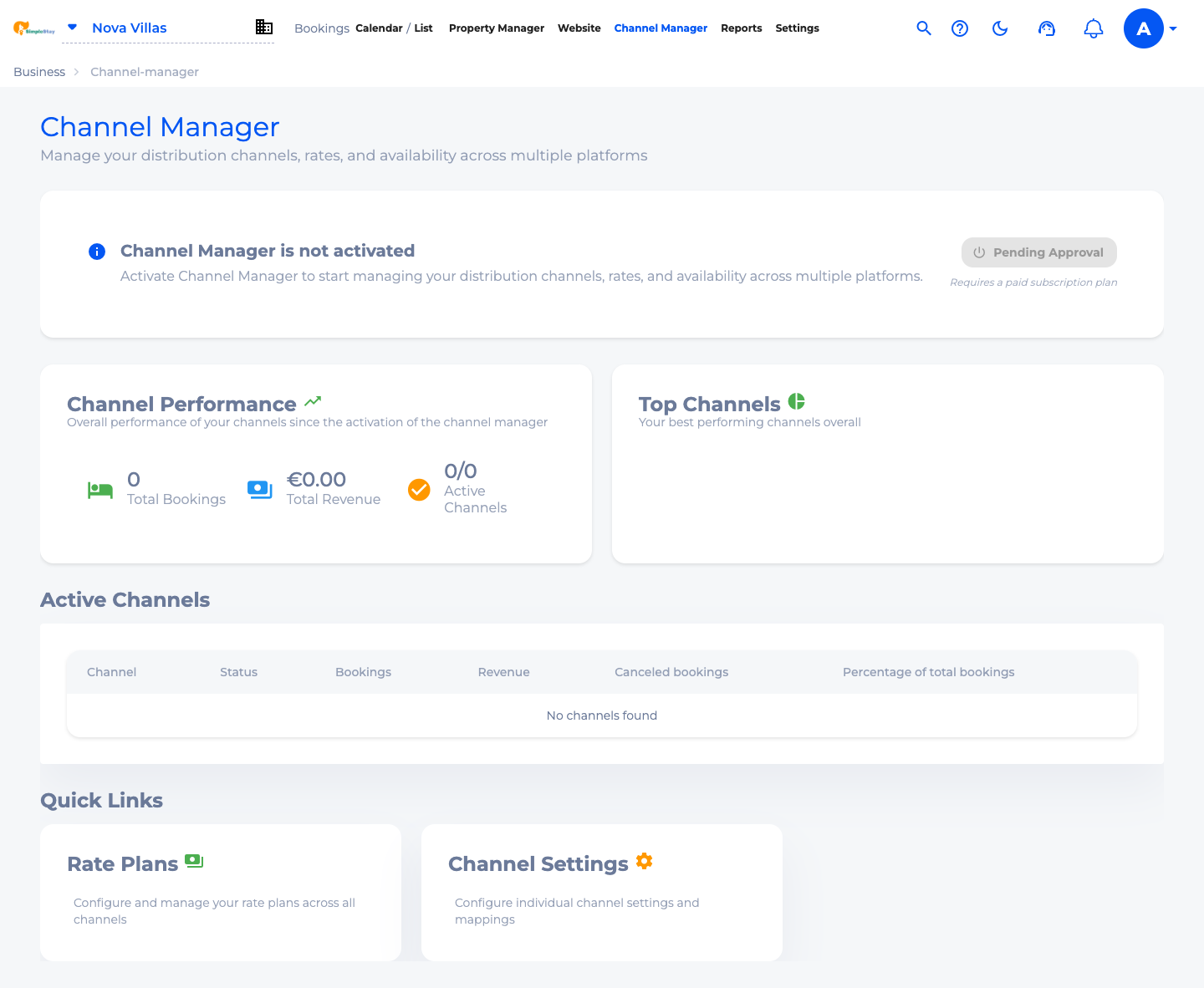
After logging in, choose the correct property in the top-left corner, then click Channel Manager in the top navigation.
This area is where SimpleStay manages distribution channels, rates, and availability after channel manager activation is approved.

Check that your setup is ready
Before requesting channel activation, make sure your core setup is clean. Channels depend on the same room inventory, availability, and rates that guests see when they book directly.
- Room types: every room or unit you want to sell should exist in SimpleStay.
- Base rates: each sellable room needs pricing for the dates you want to open.
- Availability: closed dates, blocked rooms, and inventory counts should be accurate.
- Taxes and fees: direct-booking charges should be reviewed, and OTA charges should be checked separately where needed.
Request Channel Manager activation
If Channel Manager is not active yet, SimpleStay shows an activation card. Click Request Activation to start the approval process.

Confirm Pending Approval
After the request is sent, the button changes to Pending Approval. This means SimpleStay has received the activation request and the channel setup is waiting for approval.

Review the Active Channels table
The Active Channels table is where connected channels appear after activation and mapping. A new account may show No channels found, which is normal before any OTA is connected.

Understand Rate Plans and Channel Settings
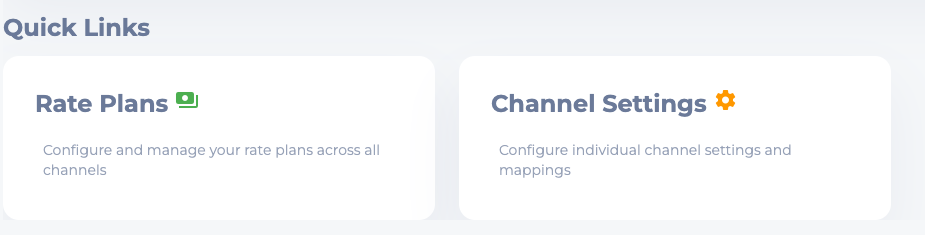
The Quick Links area shows where channel-related setup continues after activation. Rate Plans are used to manage sellable pricing structures across channels. Channel Settings is where individual channel settings and mappings are configured.
Frequently asked questions
Can I connect Booking.com or Airbnb immediately?
Channel connections usually need channel manager activation first. Request activation in SimpleStay, then follow the provider-specific mapping steps once your account is approved.
What should be ready before requesting channel activation?
Create your room types, add base prices, review availability, and confirm taxes or fees that affect your direct booking setup.
Does requesting activation publish my rooms to OTAs?
No. Requesting activation starts the approval/setup process. Your rooms are not published to external channels until channel mappings and provider connections are completed.
What to do next