 hello@simplestay.io


 English
 Dutch
Dutch
 Español
Open Taxes & Fees
Go to Settings, then Sales, then open Taxes & Fees. This area applies to website and direct bookings only. Taxes for channel bookings should still be configured inside your channel manager or OTA account.
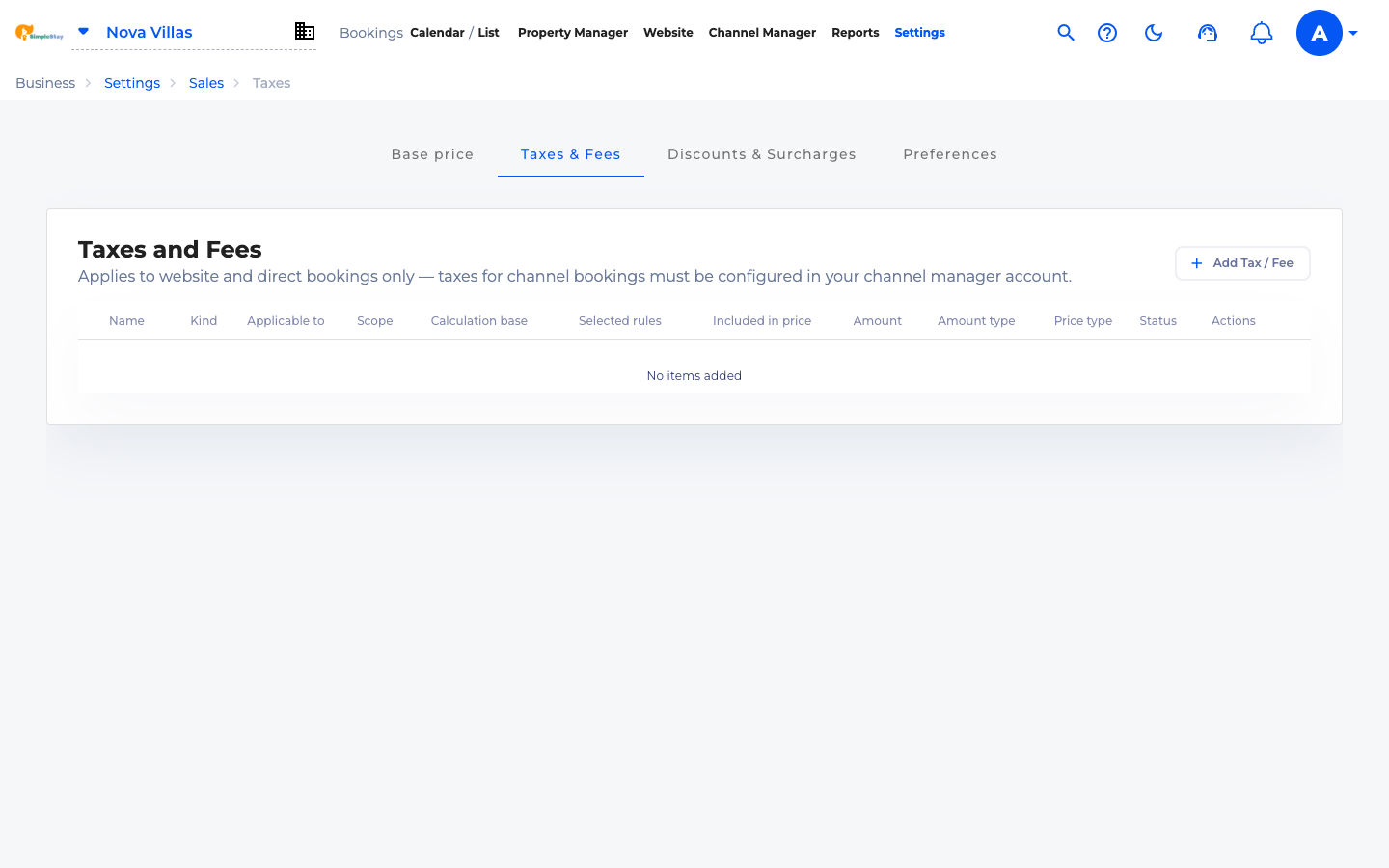
Click Add Tax / Fee
Use Add Tax / Fee to create a charge that should be calculated during direct bookings. You can use this for local tax, cleaning fees, service fees, or other guest-facing charges.

Name the tax or fee
Enter a clear name that your team will recognize. If guests will see this label, make it plain and specific, such as City tax, Cleaning fee, or Service fee.
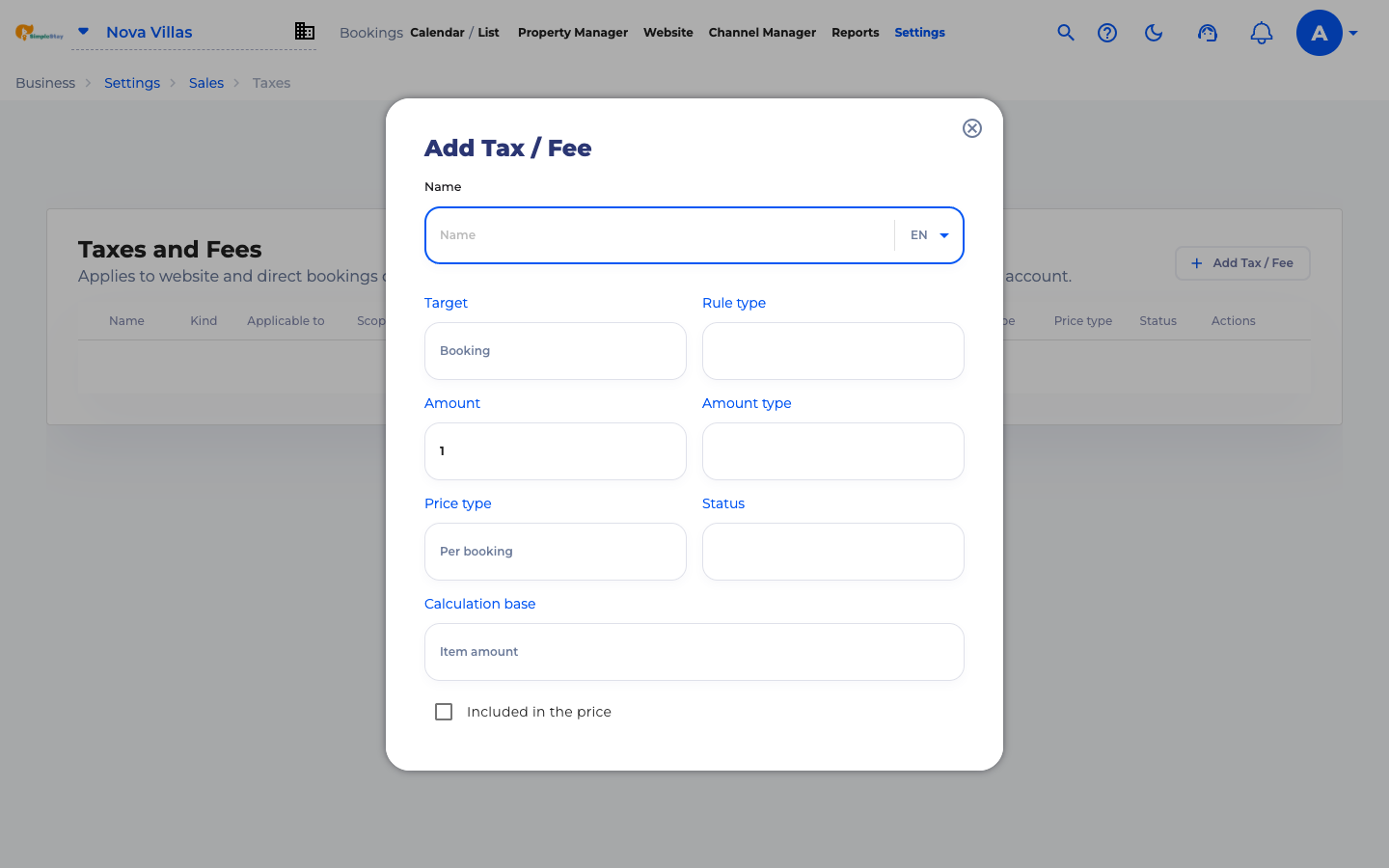
Choose the target and rule type
For a simple first setup, leave Target as Booking. Then choose whether the row is a Tax or a Fee.
- Tax is usually a required percentage or amount based on local rules.
- Fee is usually an extra charge such as cleaning, service, or resort fees.
Set amount, type, and status
Enter the amount and choose how SimpleStay should calculate it. The example creates a 7% booking tax, calculated as a percentage, with status set to Enabled.
Leave Included in the price off if the tax should be added on top of the room price. Turn it on only when your displayed room price already includes that tax or fee.
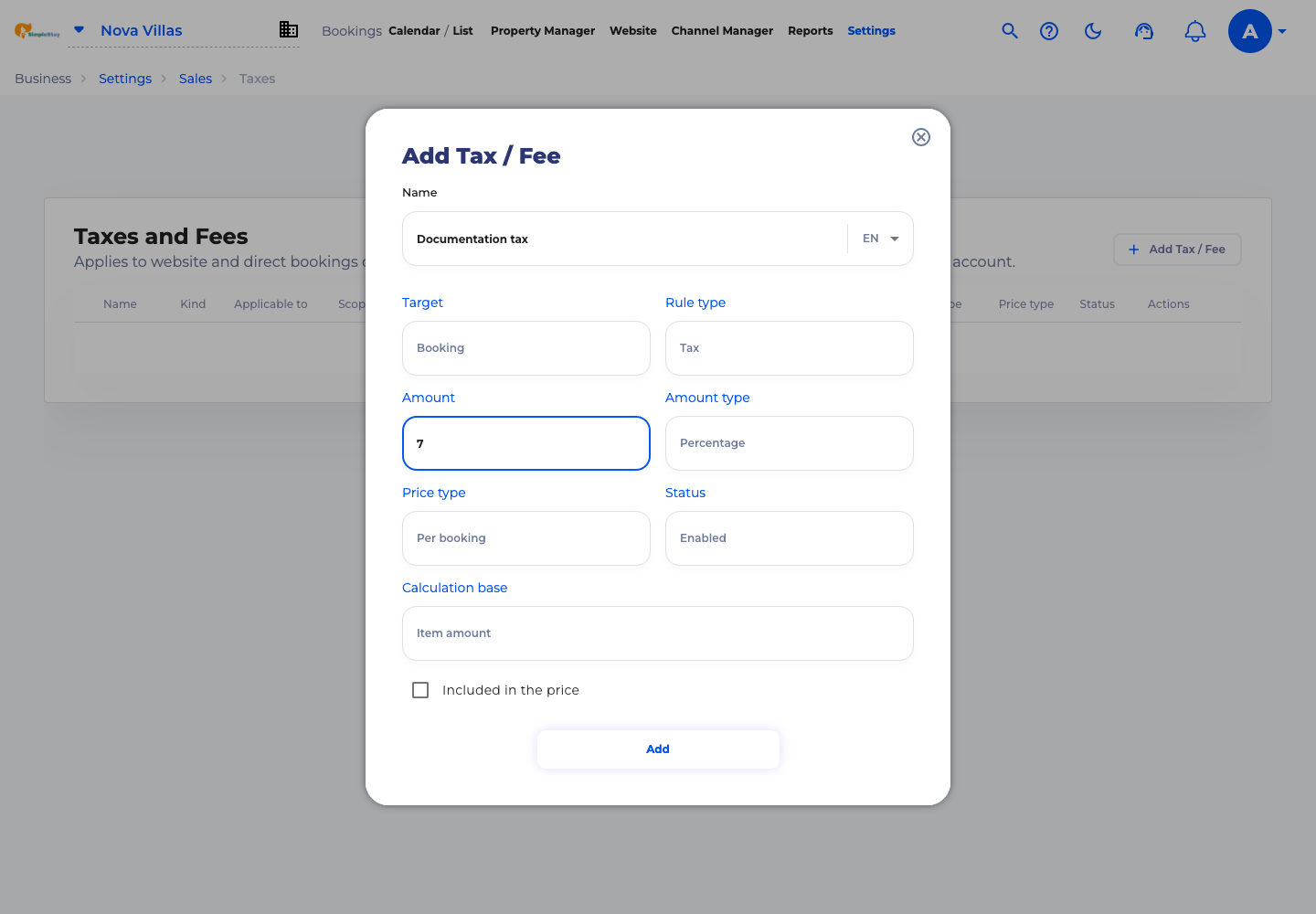
Click Add
After the fields are complete, click Add. SimpleStay closes the form and returns to the Taxes & Fees table.
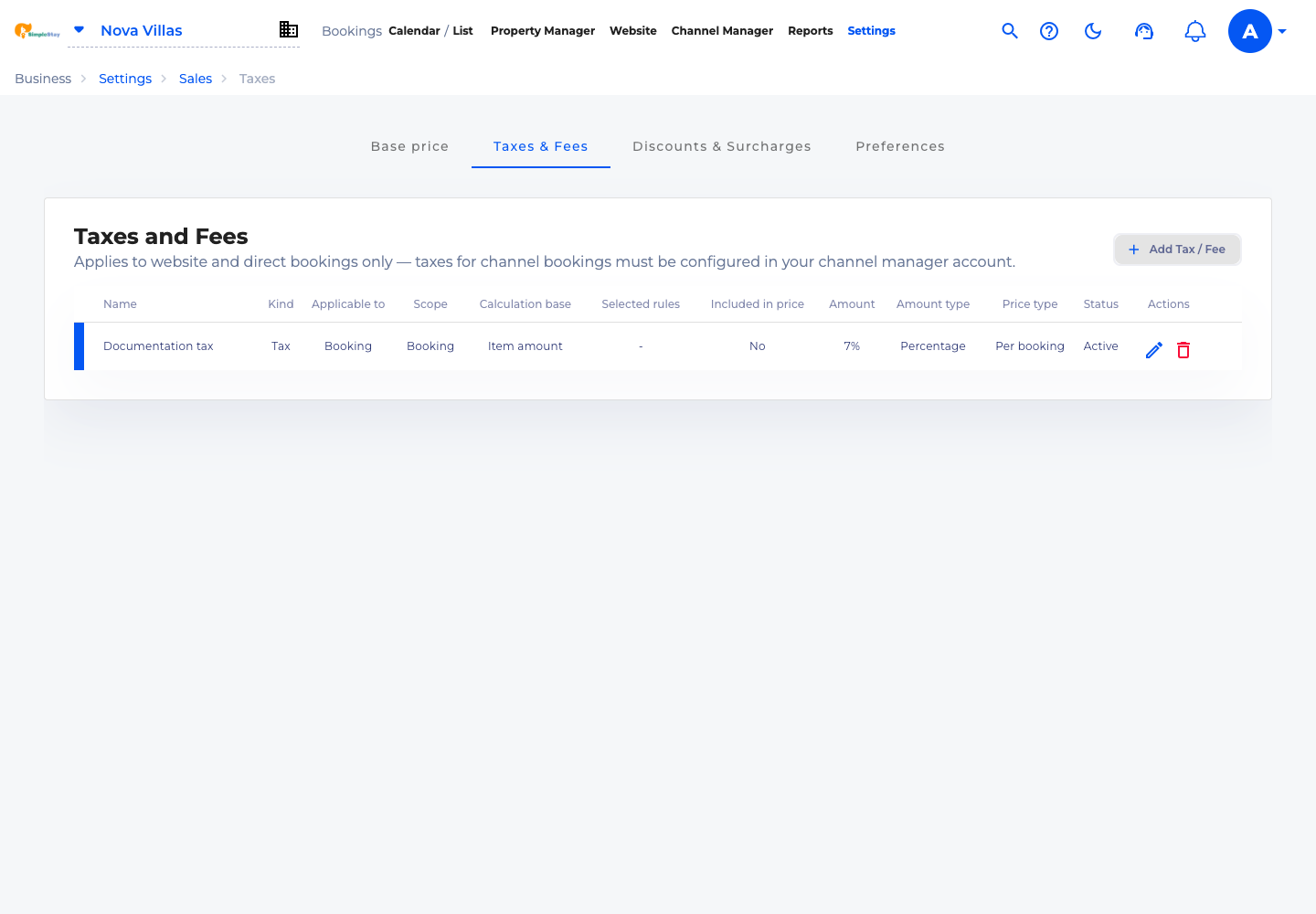
Confirm the new row
The new tax or fee appears in the table with its kind, scope, calculation base, amount type, price type, and status. Review this row carefully before relying on it for live bookings.
Frequently asked questions
Do SimpleStay taxes and fees apply to all booking sources?
This setup is for website and direct bookings. Channel taxes and fees may still need to be configured inside each OTA or channel manager connection.
What is the difference between a tax and a fee?
A tax is usually a required local or national charge. A fee is usually a property-defined charge such as cleaning, service, or administration.
Should taxes be included in the displayed room price?
Only enable included-in-price when the room price already contains that tax or fee. Otherwise, leave it off so the charge is added separately.
What to do next