 hello@simplestay.io


 English
 Dutch
Dutch
 Español
Open a new direct booking
From the calendar, click the dark + button in the toolbar. SimpleStay opens the New Order page.
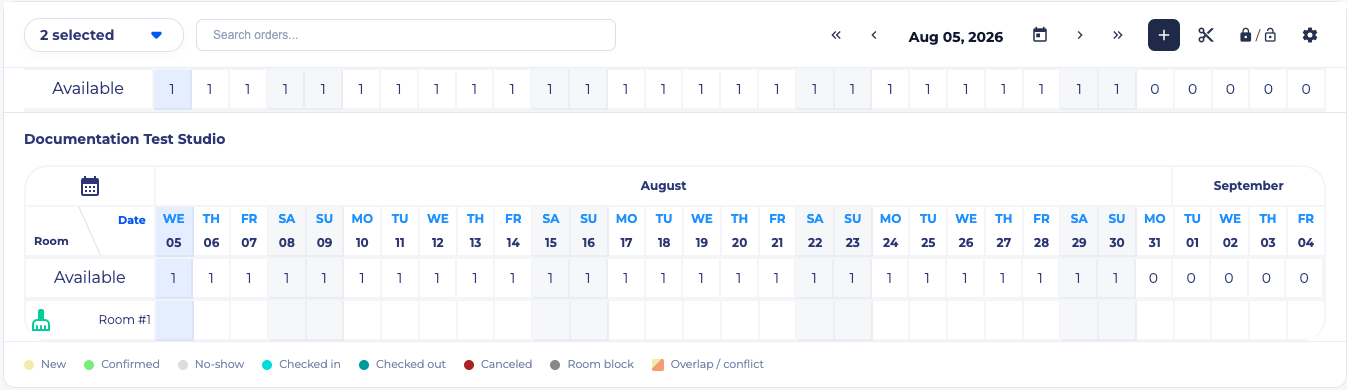
Review the booking options
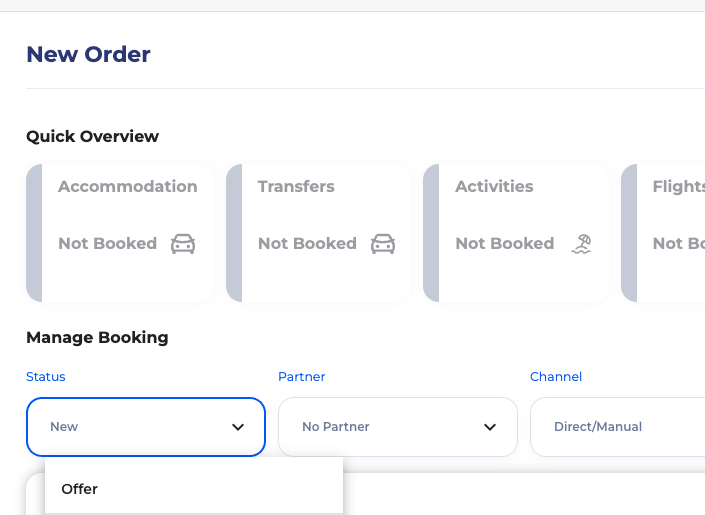
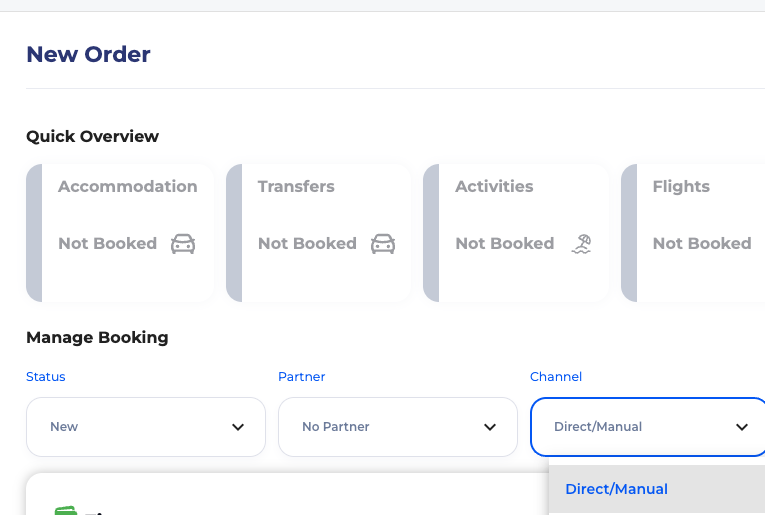
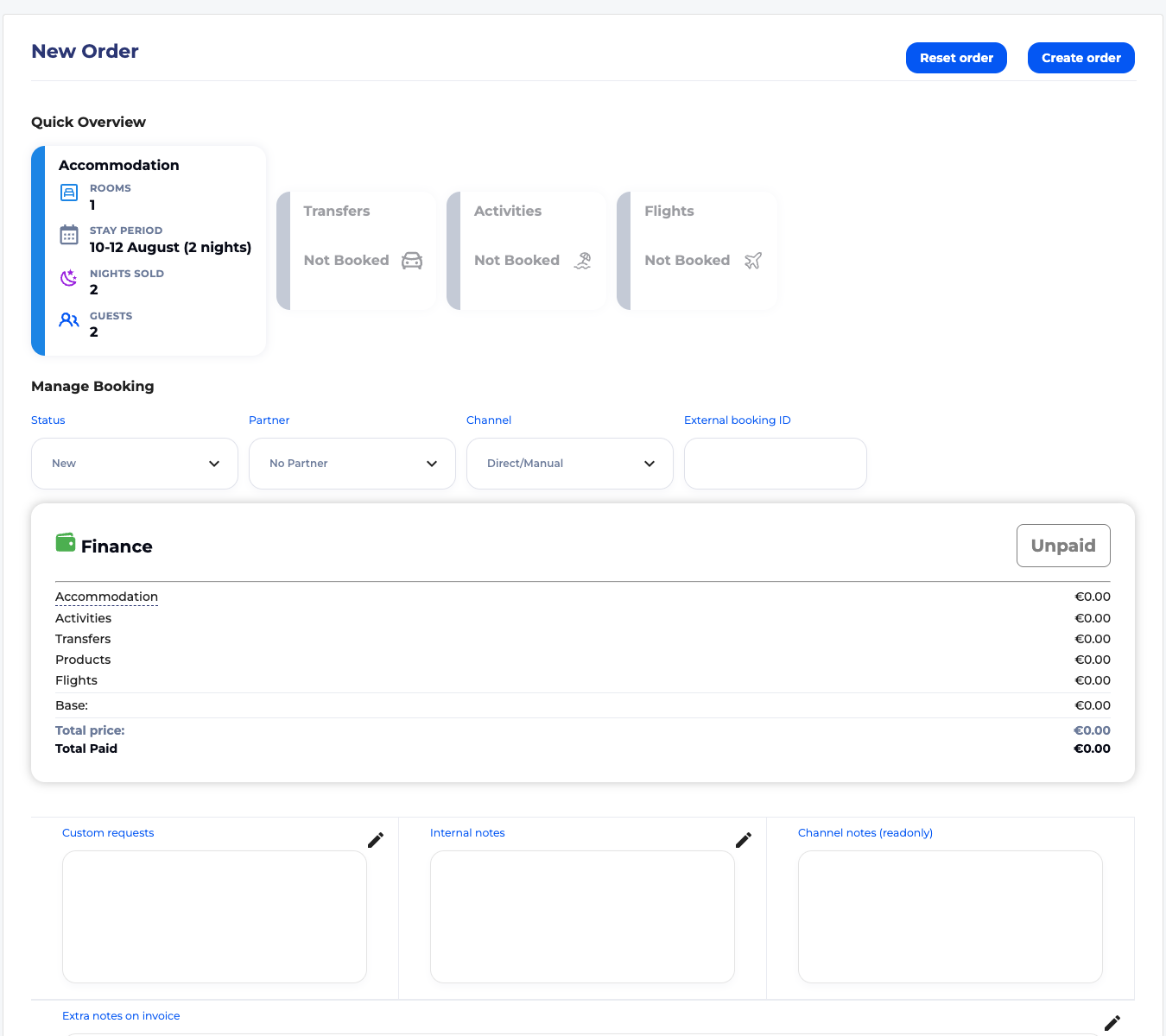
The top of the order builder controls the booking state and source. For a normal direct booking, leave Channel as Direct/Manual.
- Status: choose whether the order is Offer, New, Confirmed, Checked-in, Checked-out, No-show, or Canceled.
- Partner: choose a partner if this booking belongs to a travel partner or agency.
- Channel: choose Direct/Manual, Airbnb, Booking.com, Expedia, or Other.
- External booking ID: use this only when you want to store an outside reference number.
Add the room stay
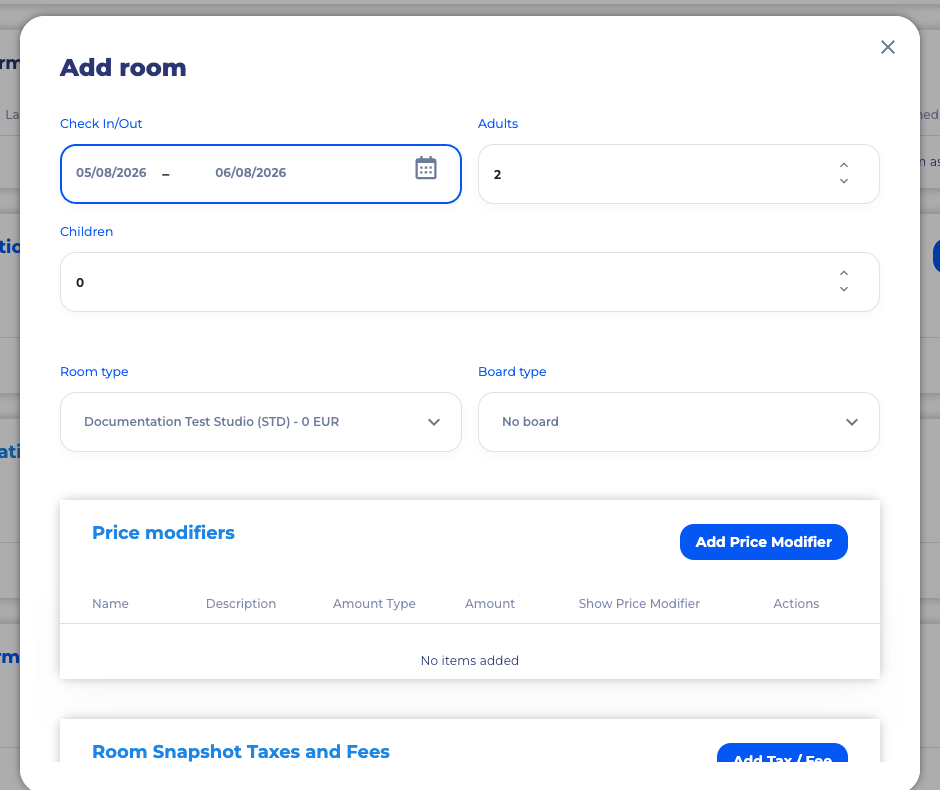
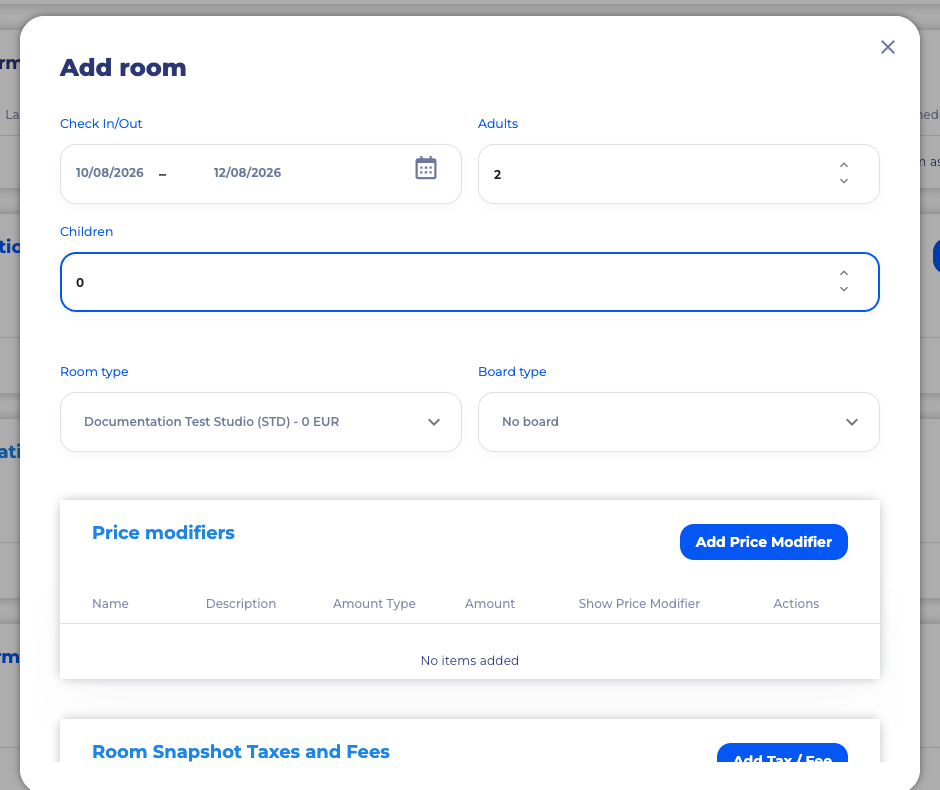
Click Add Room. Choose the check-in and check-out dates, adults, children, room type, and board type.
The room form also includes room-level Price modifiers, room snapshot Taxes and Fees, and Price Mode.
- Dynamic Price: uses the configured rates for the selected room and dates.
- Custom Price: lets you override the calculated room price for this booking.
Review the overview and finance summary
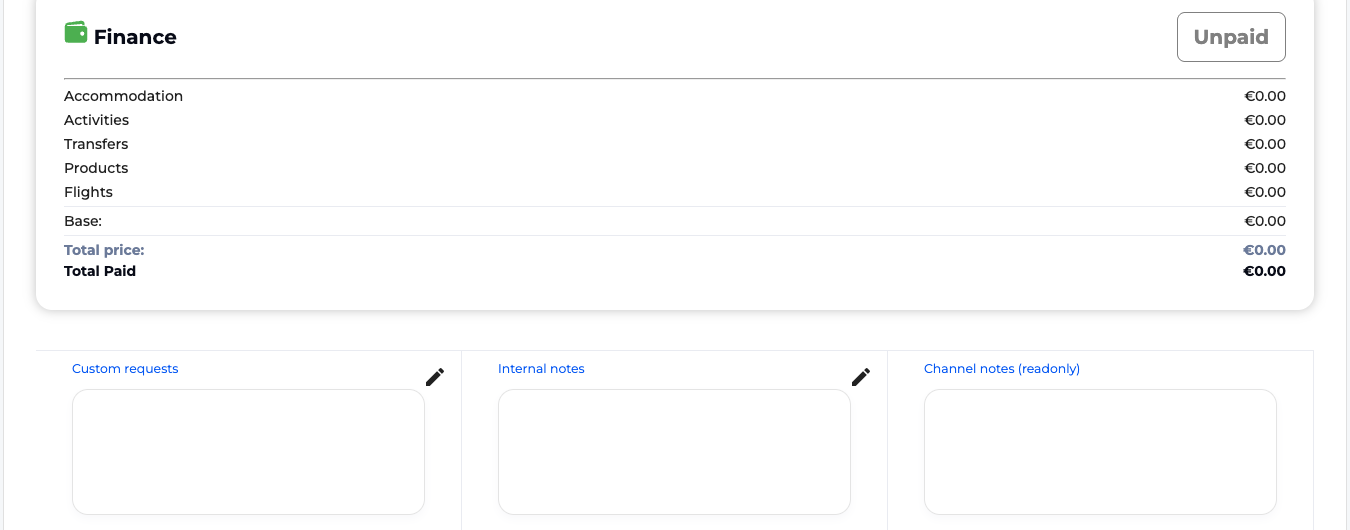
After you add a room to the draft order, the accommodation card updates with rooms, stay period, nights sold, and guests. The finance panel shows accommodation, activities, transfers, products, flights, base price, total price, and total paid.
Add customer and guest information
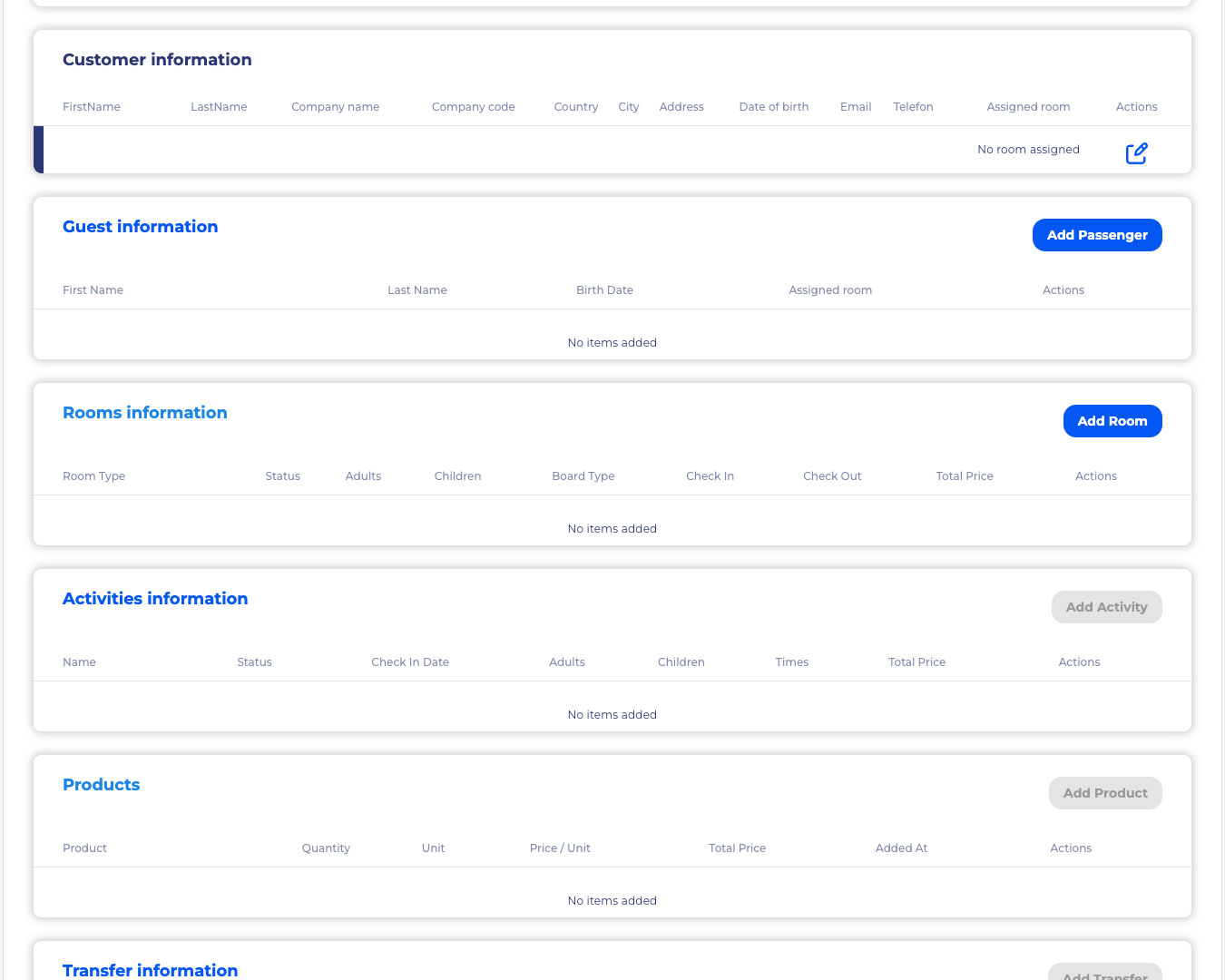
The Customer information row is for the booker or payer. It includes name, company details, country, city, address, date of birth, email, phone, and assigned room.
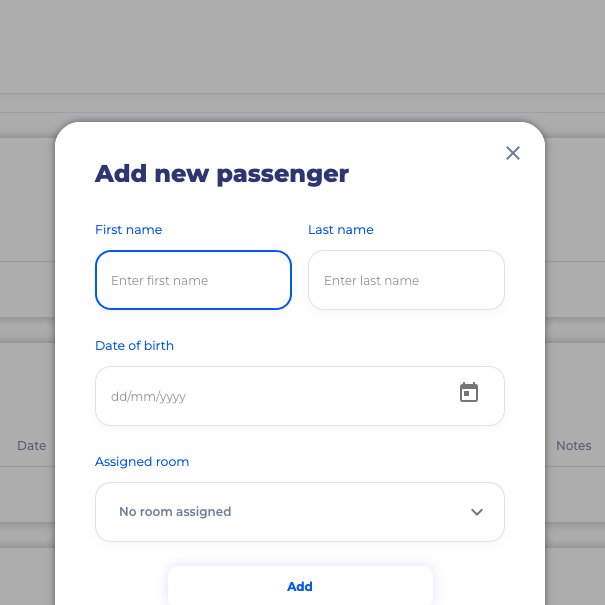
Use Add Passenger for the actual guests staying in the room. A passenger can be assigned to a room, which is useful when one order contains multiple rooms.
Add payment only if money was received
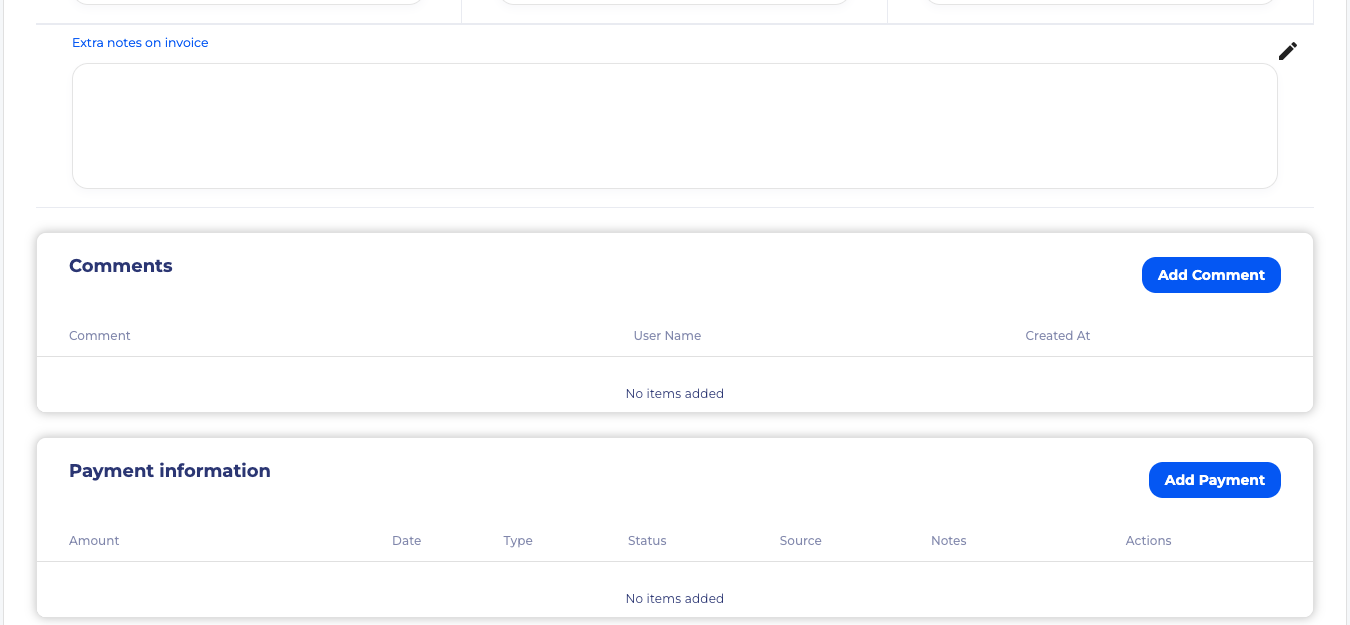
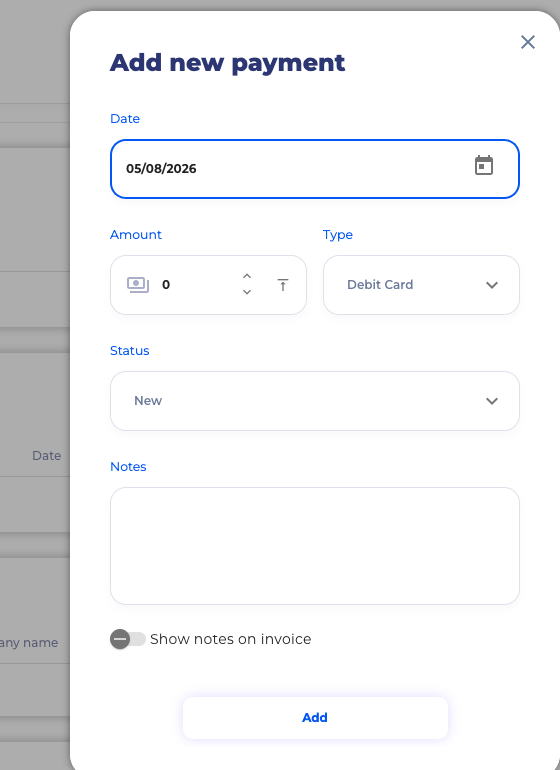
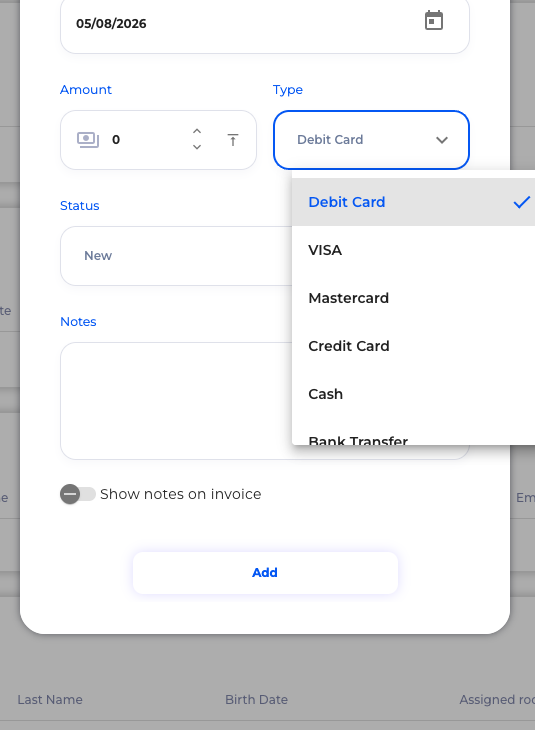
Click Add Payment when you need to record a deposit, card payment, cash payment, bank transfer, payment link, OTA virtual card, or another payment method.
Payment status choices include New, Pending, Complete, Received funds, Canceled, and Failed. You can also add payment notes and choose whether those notes appear on the invoice.
Add notes and comments
The order has several note areas. Custom requests are for guest requests, Internal notes are for your team, Channel notes are read-only, and Extra notes on invoice can be shown to the guest.
Use Add Comment for a timestamped internal comment on the order.
Review taxes, fees, and price modifiers
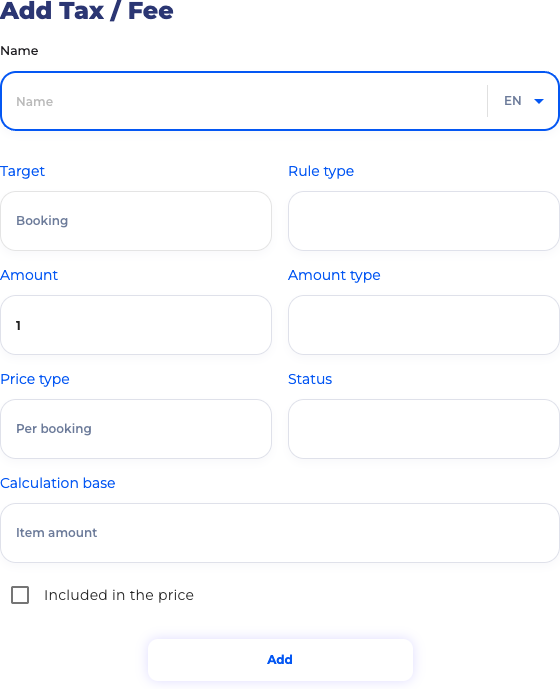
The order builder can include Order Snapshot Taxes and Fees. These capture taxes or fees that apply to the order at the time of booking.
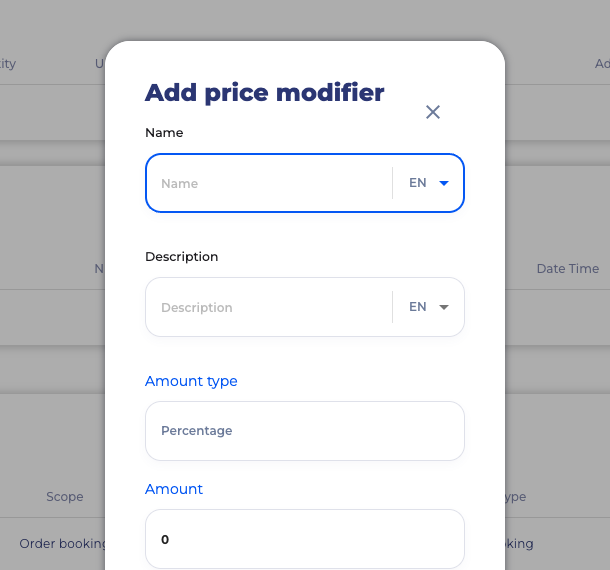
Use Price modifiers for manual discounts, supplements, or visible invoice adjustments. Choose the amount type, amount, and whether the modifier should appear on the invoice.
Check optional service sections
The order builder also includes sections for Activities, Products, Transfers, and Flights. In this example, activities, products, and transfers are disabled because no sellable extras are available for this setup.
Create the order
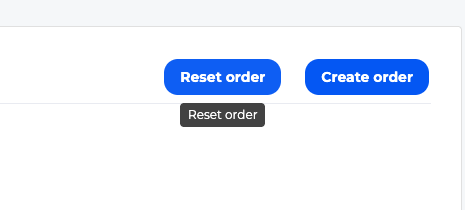
When the room, guest, payment, notes, and adjustment details are correct, click Create order. If you are only testing the form, stop before this button.
Frequently asked questions
Is a direct booking the same as an OTA booking?
No. A direct or manual booking is created by your team inside SimpleStay. OTA bookings usually arrive from connected channels such as Booking.com, Airbnb, or Expedia.
Do I need to add payment before creating the order?
No. You can create an unpaid order first and add payment records later. Add a payment during creation only when you already received money.
What is the difference between a customer and a passenger?
The customer is the booker or payer. Passengers are the guests staying in the room, and they can be assigned to rooms when needed.
Can I change the room price while creating a booking?
Yes. Use Dynamic Price to use configured rates, or Custom Price when you need to override the calculated room price for this booking.
What to do next